Go Back   TechArena Community > Software > Tips & Tweaks
Become a Member!
Forgot your username/password?
Tags Active Topics RSS Search Mark Forums Read SiteMap

Tags: , , , , ,

Sponsored Links


How to upgrade RAM on Samsung Q-Series notebook

Tips & Tweaks


Reply
 
Thread Tools Search this Thread
  #1  
Old 16-04-2011
Member
 
Join Date: Feb 2009
Posts: 444
How to upgrade RAM on Samsung Q-Series notebook

Sponsored Links
If you want to upgrade the RAM memory of your notebook, you will need to purchase new memory modules and install them.

Note:
  1. Your notebook has two memory slots. In order to use the dual channel feature, we recommend you install memory modules of the same type, capacity, and manufacturer.
  2. Replace or install a new memory module only after shutting down the computer completely. Do not replace or install a new memory module when the notebook is in sleep mode.
  3. Be sure to disconnect the power supply, and remove the battery before continuing with the upgrade.

Here is how to upgrade Memory on 15.6 / 14 / 13.3-inch models:
  • Remove the screw on the memory compartment cover at the bottom of the notebook using a screwdriver.

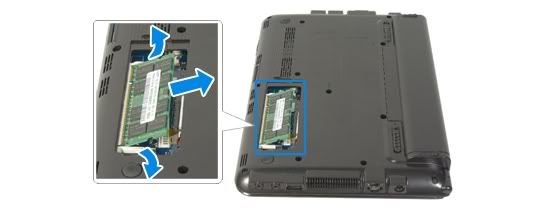
  • Pull the memory module latches outward. The memory module will pop up. Remove the memory module out at an angle of 30 degrees.


  • Insert the new memory module into the memory slot at an angle of approximately 30 degrees, aligning it with the angle of the memory slot.

  • Push the memory module down so that it is completely fixed. If it does not fit easily, push the memory module down while pulling the memory module latches outward.

  • Close the compartment cover, and fasten with the fixing screw.
Reply With Quote
  #2  
Old 16-04-2011
Member
 
Join Date: Feb 2009
Posts: 444
Re: How to upgrade RAM on Samsung Q-Series notebook

Memory upgrade – 12-inch models:
  • Remove the two keyboard (K) fixing screws on the bottom of the notebook.

  • Push the keyboard catches.


  • Lift the keyboard front lightly, pull it forward slightly and turn the keyboard upside down in front of the notebook. Avoid pulling the keyboard excessively at this time as the keyboard connector can become detached.

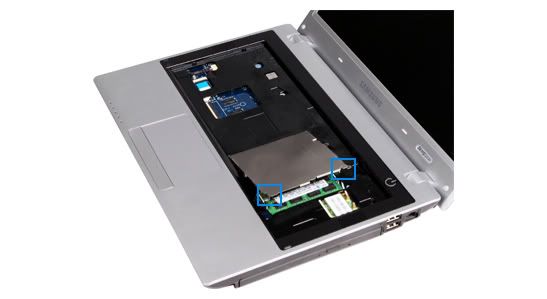
  • Unfasten the screws that hold the memory cover in place and remove the memory cover.


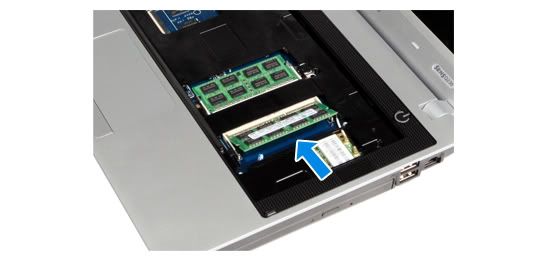
  • Push the memory module catches outward. When the memory module pops up, pull it outwards at a 30 degree angle.

  • Insert a new memory module into the memory slot by aligning the memory module pins with the slot pins.


  • Push the memory module down to fix it firmly.

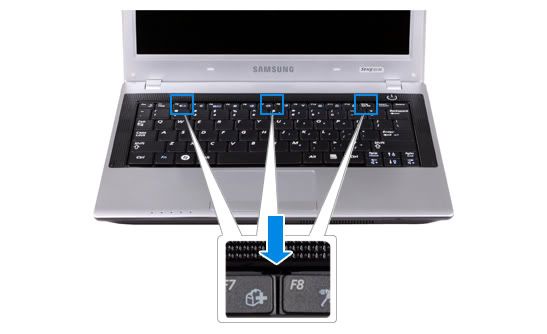
  • Insert the keyboard from the top and press the three points down to fix the keyboard. Check if the keyboard catches pop up.

  • Fasten the two keyboard (K) screws on the bottom of the notebook.
Reply With Quote
Reply

  TechArena Community > Software > Tips & Tweaks


Thread Tools Search this Thread
Search this Thread:

Advanced Search


Similar Threads for: "How to upgrade RAM on Samsung Q-Series notebook"
Thread Thread Starter Forum Replies Last Post
Samsung 7 series notebook won't charge above 80% Kuval Portable Devices 5 11-10-2012 01:18 PM
Samsung Series 9 Notebook or Asus Zenbook UX31 FLU|TER Portable Devices 6 27-01-2012 01:29 PM
Is there a Samsung NP900X4B-A02US Series 9 15" Notebook tHeDa! Portable Devices 3 27-01-2012 12:02 PM
Samsung Series 9 11.6inch vs Samsung Series 9 13inch Notebook The#Gaelic Portable Devices 4 27-01-2012 11:13 AM
Samsung series 9 Notebook Fox28 Reviews 1 20-04-2011 01:20 PM


All times are GMT +5.5. The time now is 07:02 AM.